
How OCI Service Logs helped explain a cryptic Mcp error: -32007
Estimated reading time: 9–10 minutes
Everything Looked Fine…
At first, the setup looked fine.
The Database Tools connection already existed. The Database Tools MCP Server was running, and my MCP client successfully connected to it. I tried the first tool call anyway.
Instead of getting the expected response, I was greeted with:
Error: tool call error: tool call failed for `prodmcp/schema_information`
        Caused by:
            Mcp error: -32007: Missing required permissions. Use or enable the service logs for more information. The opc-request-id for this request is 'mcp-160_xx_yy_zz/32814DBE7A9047A10D05486..../84BDBD36C29A660145C67E36FE....' and can be used to lookup logs
📷 Figure 1 – MCP Client showing the failed tool invocation and the error.
The client told me the call failed, but not why.
Was it the database? The Database Tools connection? IAM? Networking? Something else?
Service Logs are what make the next step possible. They show what the Database Tools MCP Server actually tried to do for the client.
I’m using an IAM policy issue here, but the same troubleshooting pattern applies to other failures too.
What You’ll Learn
- Enable Service Logs.
- Correlate an MCP error with OCI Logging.
- Use the
opc-request-idto locate the failing request. - Diagnose an IAM policy issue.
- Verify the fix.
A Quick Refresher
The Database Tools MCP Server is a managed OCI service that exposes Oracle AI Database capabilities through the Model Context Protocol (MCP).
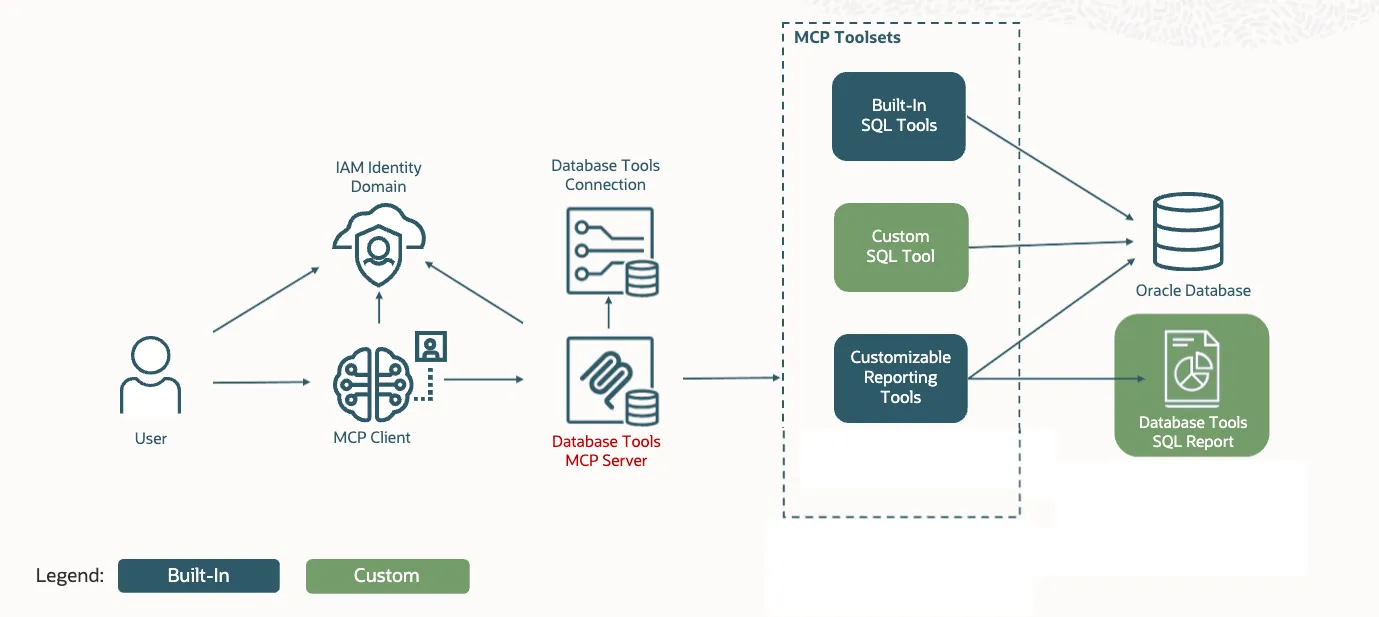
📷 Figure 2 – Architecture Diagram
Multiple OCI services participate in a single request. The client generally sees only the final error.
Wait… There Are No Logs
I opened OCI Logging first.
But there were no Service Logs yet.
So the first step was to enable Service Logs.
Enable Service Logs
- Navigate to Developer Services -> Database Tools -> Model Context Protocol (MCP) servers.
- Select your compartment and click your MCP server from the list.
- Navigate to the Monitoring tab.
- There is a pre-created log entry named MCP Invocation Logs. By default, it is not enabled.
- Click the three-dot menu on the right side and select Enable log.
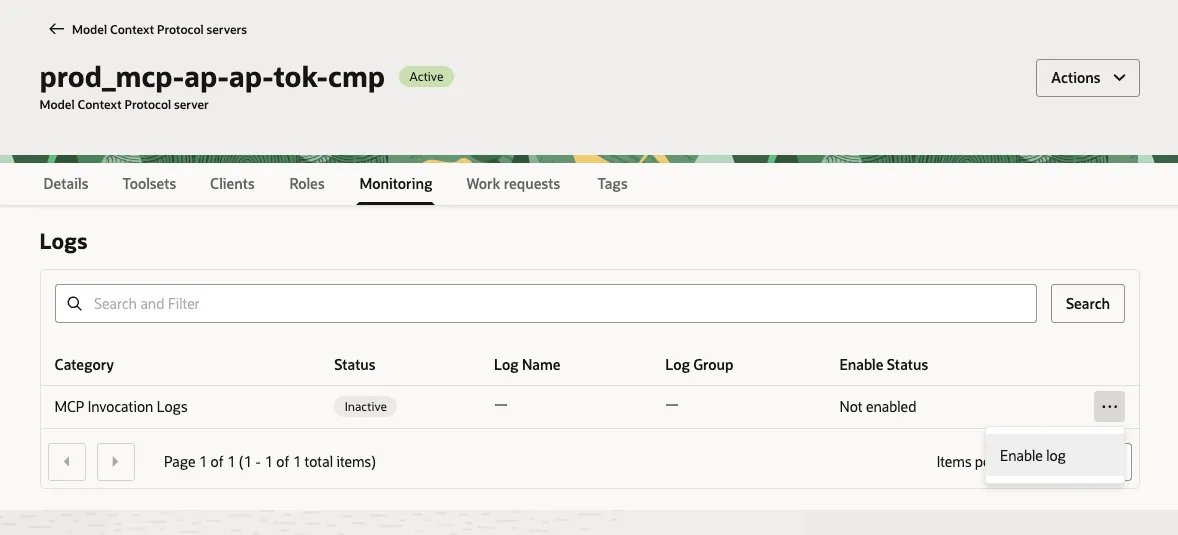
📷 Figure 3 – Enabling the pre-existing MCP Invocation Logs
- This opens the Enable log dialog.
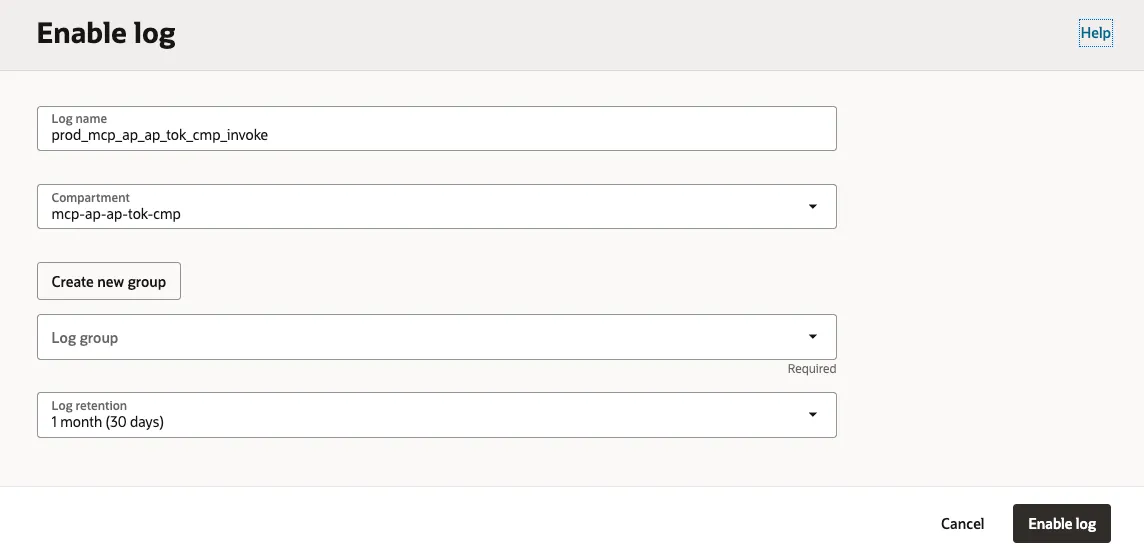
📷 Figure 4 – Enable log dialog
- If you already have a Log group, select it from the Log group drop-down.
- If not, click the Create new group button.
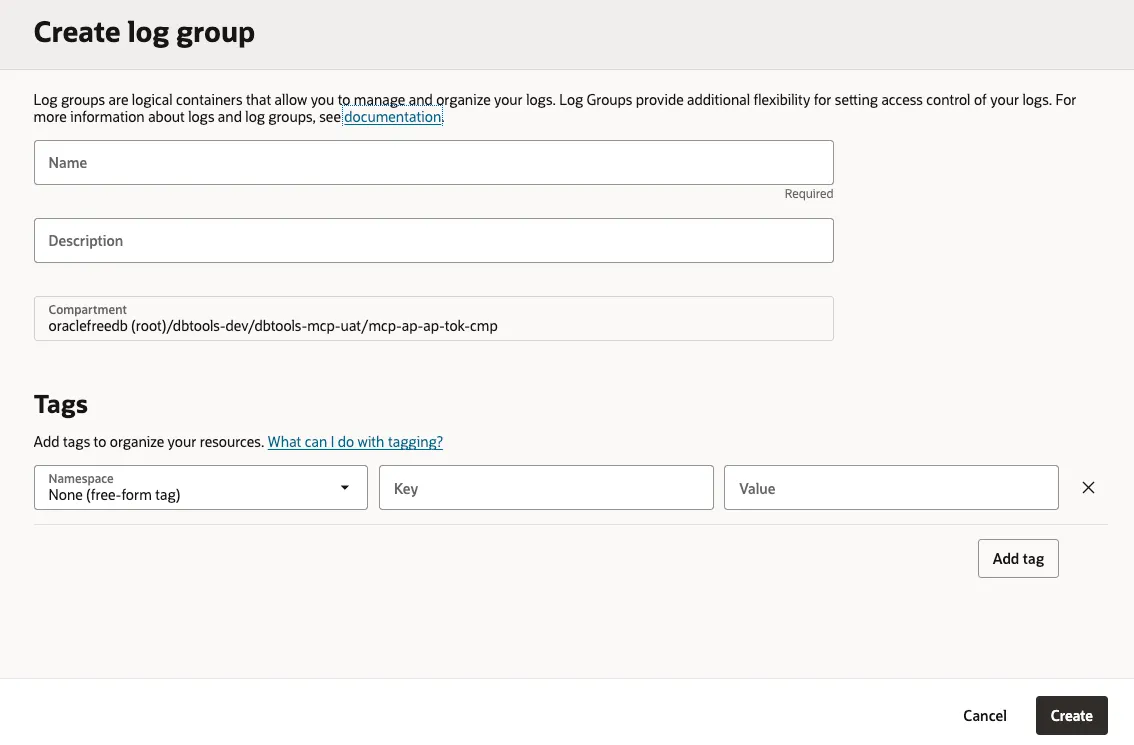
📷 Figure 5 – Creating the Log Group
- Give it a Name and optionally a Description.
- Click Create. This closes the Create Log Group dialog.
- The newly created Log group is now visible on the Enable log dialog.
- Click the Enable log button. This closes the Create log dialog.
- After a few seconds, the MCP Invocation Logs will be Active.
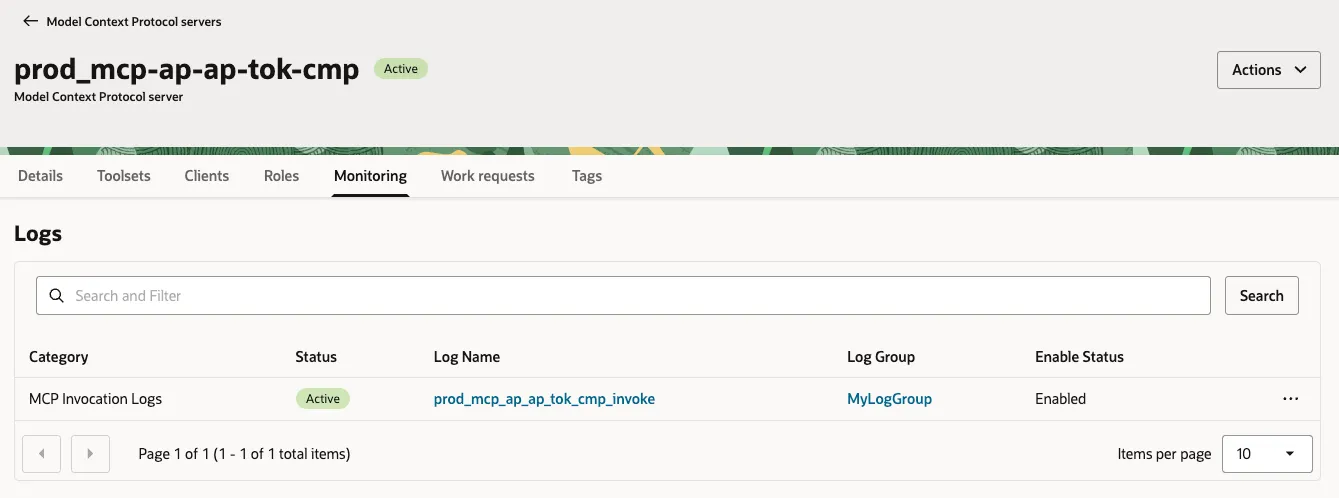
📷 Figure 6 – Active MCP Invocation Logs
Try Again
Run the same MCP request again.
The error is the same, but the opc-request-id is different this time:
Called prodmcp.sql_run({"model":"gpt-5","source":"select * from music_albums fetch first 2 rows only;"})
  └ Error: tool call error: tool call failed for `prodmcp/sql_run`
        Caused by:
            Mcp error: -32007: Missing required permissions. Use or enable the service logs for more information. The opc-request-id for this request is 'mcp-
        160_xx_yy_zz/5E617505FD07439D0A15486A000..../5323DD8CD8358BCE33446821D155....' and can be used to lookup logs
📷 Figure 7 – MCP Client showing the failed tool invocation and the error after retry.
This time there’s something concrete to trace.
Following the Breadcrumbs
The MCP error includes an opc-request-id, which is the key to tracing the request.
The Service Log records the same identifier.
Click the Log Name link. In this case, it’s prod_mcp_ap_ap_tok_cmp_invoke. Then open the log details in the Explore log tab.
I looked at the last 30 minutes of Service Logs. The example below was generated by intentionally triggering a few MCP errors.
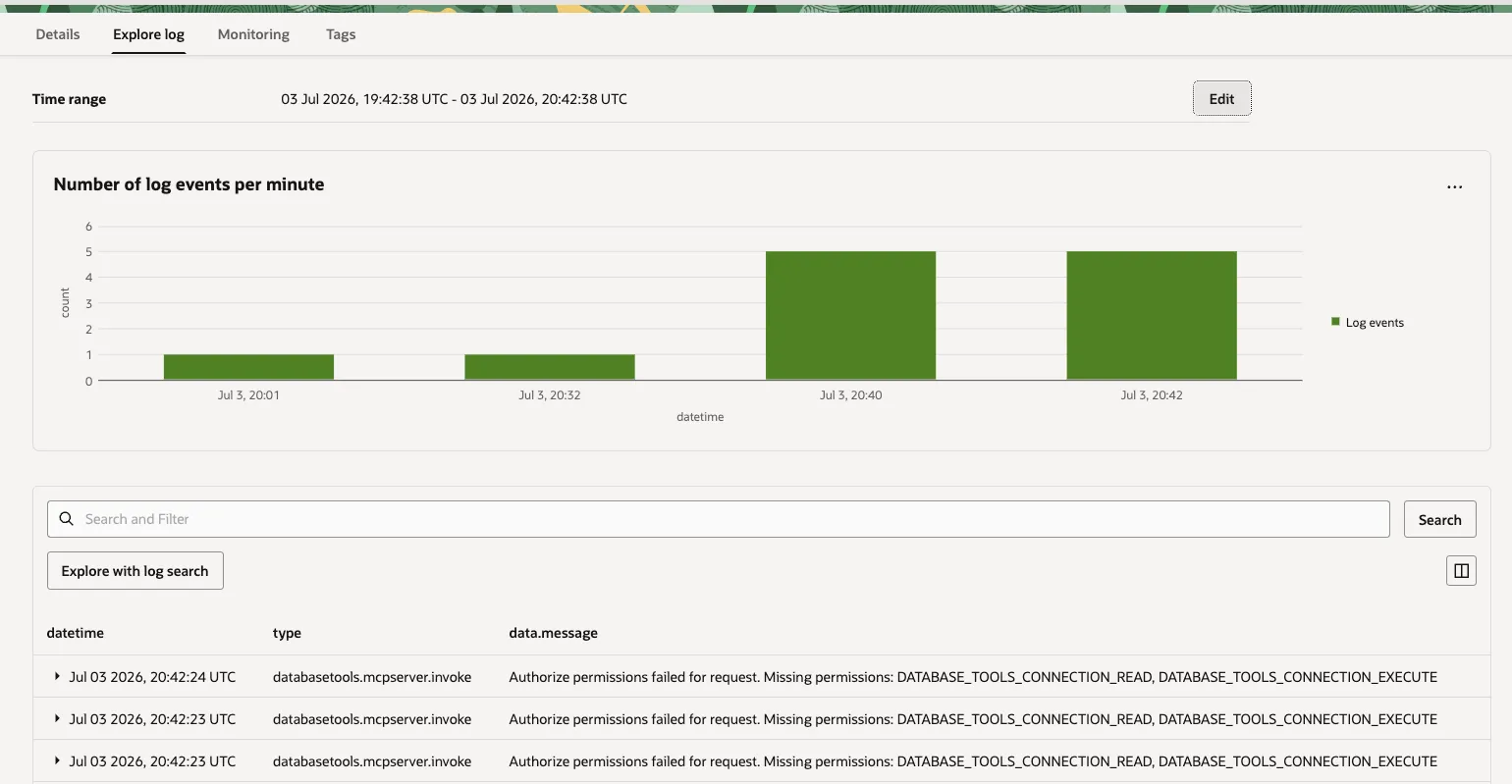
📷 Figure 8 – Logs
Search by request ID instead of timestamp. See the OCI Logging search documentation: OCI Logging search
The Smoking Gun
The Service Log shows:
- which OCI operation was attempted
- which Database Tools resource was involved
- which compartment it hit
- which runtime principal was used
- how authorization was decided
- the
opcRequestId
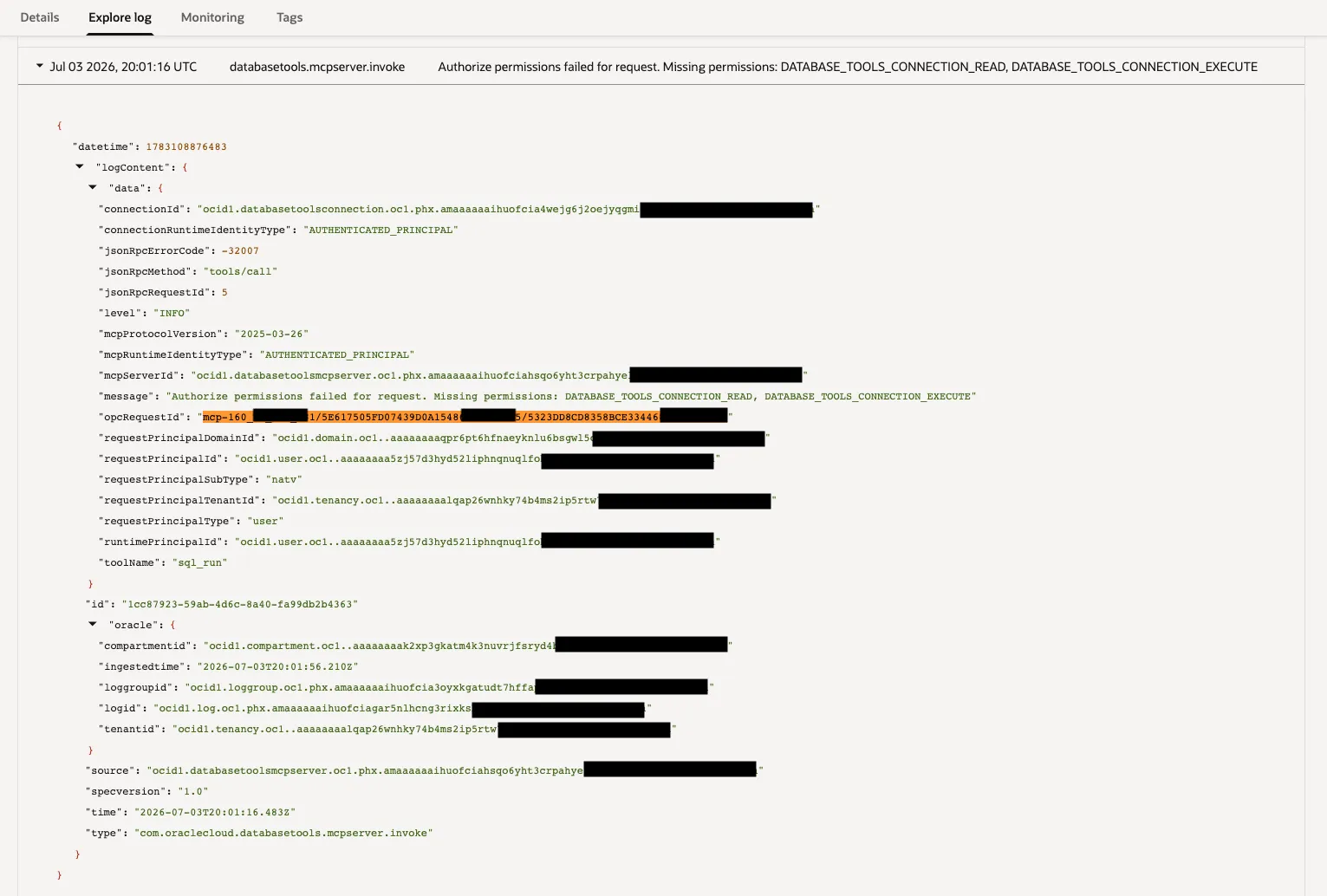
📷 Figure 9 – Annotated Service Log
The log shows OCI IAM rejected the operation because the MCP Server didn’t have the required permission.
Now the failure makes sense.
Fix the Policy
Compare the resource, compartment, and principal in the Service Log with your IAM policy. In this case, the missing statements were the ones that granted access to the Database Tools connection the MCP server was using.
Update the policy if needed, then try the request again. For example:
allow group <group> to use database-tools-connections in compartment <compartment>Retry once more
Once the policy is fixed, run the same request again. This time it succeeds.
› Show me the tables I own and provide me with a short summary

(multiple prodmcp.sql_run(...) invocations)

• You own 2 tables in schema MCP_USERS:

  - EMPLOYEES - 10 rows. Looks like a small HR-style table with employee identity and compensation data: EMPLOYEE_ID, FIRST_NAME, LAST_NAME, EMAIL, JOB_TITLE, DEPARTMENT, HIRE_DATE, SALARY.
  - MUSIC_ALBUMS - 19 rows. Looks like a curated album catalog with ranking and metadata: ALBUM_ID, CURATED_RANK, ARTIST_NAME, ALBUM_TITLE, RELEASE_YEAR, COUNTRY_OF_ORIGIN, PRIMARY_GENRE, NOTES,
    ALBUM_COVER_URL.
📷 Figure 10 – Successful MCP response
Troubleshooting Checklist
Use this checklist before trying the request again.
- Is the compartment correct?
- Is the principal correct?
- Does the Dynamic Group match?
- Are the tenancy and region correct?
- Has the policy propagated?
Looking Ahead
Note: Service Logs only show the details when something goes wrong. Successful requests don’t appear there, so Audit Logs are a better fit when you need a broader activity trail.
This is just the first useful use case I’ve found for Service Logs on the MCP Server. More troubleshooting scenarios should show up as the logging surface grows.
Today it was an IAM policy issue, but the same workflow should work for other failures too.
Takeaways
The next time you see:
Mcp error: -32007don’t stop at the error code.
Use the opc-request-id to find the matching Service Log.
The client tells you when something fails.
The Service Logs tell you why.
References
- OCI Database Tools documentation: https://docs.oracle.com/en-us/iaas/database-tools/home.htm
- OCI Logging overview: https://docs.oracle.com/en-us/iaas/Content/Logging/Concepts/loggingoverview.htm
- OCI Logs and Log Groups: https://docs.oracle.com/en-us/iaas/Content/Logging/Task/managinglogs.htm
- OCI Service Logs: https://docs.oracle.com/en-us/iaas/Content/Logging/Concepts/service_logs.htm
- OCI Logging search: https://docs.oracle.com/en-us/iaas/Content/Logging/Concepts/searchinglogs.htm
- OCI Audit Logs: https://docs.oracle.com/en-us/iaas/Content/Logging/Concepts/audit_logs.htm